I Built a Revit for OpenClaw
Apr 6, 2026 · AI · BIM · OpenClaw · Revit
You may already be using OpenClaw for all kinds of chores: writing weekly reports, tidying files, answering messages. But you probably haven’t thought of asking it to draw plans, design a building, or review a scheme.
The reason is simple: it can’t read building models. Revit files are binary, IFC is made for machines to parse, and opening either of them is, for OpenClaw, like you staring at a page of garbage characters.
So I built BimDown: a building data format that AI can read and write directly, plus a set of tools around it. Once you install the skill, your OpenClaw can do building work, and without installing Revit or any other professional software.
Why the format is designed this way, and how it benchmarks against IFC and the Revit API, I covered in the previous post, How to Make AI Agents Truly Understand Buildings? Building an AI-Native BIM Data Structure. This one is only about applications: what the workflow looks like when an agent actually reads and edits these files, and which concrete problems it can solve.
What it can do
Let’s start with a few demo scenarios.
Demo 1: From brief to scheme
You’re an owner with a plot of land, and you want to see what kind of office building could go on it. You tell OpenClaw:
“Design a 6-storey office building for me, typical floor around 800 m², central core, lobby on the ground floor.”
OpenClaw works out the floor heights and the core size, lays out the typical floor (core in the middle, open-plan offices around it), treats the ground floor as a lobby, generates the model files floor by floor, renders a plan of each floor, and finally gives you an online preview link where you can look at it in 2D and 3D.
Not enough meeting rooms?
“Add two small meeting rooms on every floor. The office area on the west side is too deep and doesn’t get enough daylight; pull it in by 2 m.”
OpenClaw makes the changes and re-renders, so you can compare the plans before and after. The whole thing feels like talking to a designer, except you don’t have to wait for a slot in their schedule.
For the agent, “pull it in by 2 m” isn’t a Boolean subtraction on a 3D mass; it just changes the coordinates of a few walls. In BimDown, doors and windows are hosted on a wall and positioned by their distance along it, so when the wall moves, its windows move with it. You don’t get the torn elements and broken faces that 3D tools are prone to.
Demo 2: From drawing to model
You have a typical floor plan (PNG or PDF) and need a BIM model of the whole building.
“Here’s the typical floor plan. Build the architectural model of the whole building: 12 floors, 5.4 m ground floor, 3.6 m typical floors.”
OpenClaw recognizes the walls, doors, windows and rooms in the drawing, extracts their coordinates to build the typical floor, then copies it up to the full floor count (adjusting the ground floor for its different height) to produce the whole building.
What helps most here is the render-and-check loop described below: every time the agent finishes a part, it renders a plan and compares it against the original drawing, fixes whatever is off or doesn’t line up, and repeats until the two roughly match.
This isn’t a sketch; it’s a model with real data. Every wall has a material and a thickness, every door has a width and a swing.
Once the architectural model is confirmed, you can keep going with structure:
“Now add the structure: a frame structure, with the column grid following the grid lines.”
OpenClaw reads the grid, places columns at the intersections, runs beams along the grid lines, and adds a structural slab on each floor. Architecture and structure are done in separate steps, and the model gets richer as you go.
Demo 3: The designer hands over, the owner reviews with AI
There are two roles here: the designer works in Revit, the owner works with OpenClaw.
The designer shares: click the “Share” button in Revit, and the add-in exports the model, uploads it and produces a link to send to the owner.
The owner reviews: the owner passes the link to OpenClaw:
“Take a look at this design. Any problems?”
OpenClaw reads the whole model, renders a plan of each floor, uses SQL to compute areas, the share of common area and room counts, and then flags issues on its own:
- “Corridors take up 26% of the total area, above the industry average of 20%; worth optimizing.”
- “The office in the southwest corner of floor 5 has no window and doesn’t meet the natural daylight requirement.”
The owner says “Narrow the corridor to 1.8 m and put a window in that windowless room.” OpenClaw checks that the change still complies with the fire code, makes it, and records the change (a git commit).
On the designer’s side, an AI reads the change record and produces a change report: which walls moved, how much area is affected, whether fire compliance still holds. Once the designer confirms, the Revit add-in imports it in one click and applies the changes. Because every change is an increment tied to element IDs, all Revit does is “move these few walls, add a window to this wall”. Nothing else in the model is touched.
The old way was to send screenshots, draw red circles and type comments on them, and then have the designer go back into a huge model, find the objects from memory and fix them by hand; things slip through easily. Now the whole loop works without the owner learning Revit or the designer redrawing anything, and every change has a git record you can trace.
Demo 4: Fire evacuation analysis
“Will this building pass the fire review? Check the evacuation distances on every floor.”
In BimDown, the relationships between rooms, corridors and doors are already there as 2D data, so they can be turned directly into a circulation graph: rooms and corridors are nodes, doors are edges. Finding the nearest escape stair becomes a shortest-path problem on a graph, which computer science solved long ago. The agent just writes a Dijkstra and runs it, with none of the worry, as in physical simulation, that some corner of the model that isn’t fully closed will break the path.
OpenClaw reads the wall topology of each floor, builds the circulation graph, locates the escape stairs, computes the walking distance from every room to the nearest stair, checks it against the code (≤40 m for direct evacuation, ≤22 m for dead-end corridors), and reports:
✅ Floors 1-2: all rooms within 35 m, compliant
⚠️ Floor 3: southeast-corner office at 43 m, 3 m over
⚠️ Floor 4: same southeast-corner location at 45 m, 5 m over
✅ Floors 5-6: compliant
And it doesn’t stop at reporting the problem; it reasons about the fix. Rather than adding a third stair (expensive), it’s better to add an exit door at the end of the corridor leading into the adjacent fire compartment (a Class A fire door, cheap). After making the change and recalculating, the whole building complies.
The traditional way needs a fire consultant plus Pathfinder; here it takes seconds.
Demo 5: Re-cutting construction pour zones on the fly
One long-standing problem holding back 4D BIM (tying the construction schedule to the model) is that design usually delivers one big slab, while the site pours it in sections; and when weather or resources change, the pour zones have to be changed at short notice, say from 3 sections to 4. In Revit, every re-cut is a Boolean cut on a 3D solid, and after a few rounds of that the model geometry tends to break, so people on site often end up looking only at Excel, not at the model.
“Heavy rain is forecast all next week, so the plan for the level 2 slab changes. Scrap the 3 pour zones we had. Re-cut the whole slab into 4 pour zones along grid lines 1-3, 3-6, 6-8 and 8-10, and link them to the schedule for Monday to Thursday next week.”
All the agent sees is a slab.svg and a grid table, grid.csv. Cutting the slab goes from slicing a 3D solid to clipping polygons on a plane, which is simple and stable. After the cut it runs bimdown build once to recompute the area of each piece; multiply by the slab thickness and you have the concrete volume for each zone, ready to order from the batching plant. Finally it renders a four-color plan of the pour zones so the chief engineer can check whether the construction joints are in sensible places.
How it works
1. A building data format AI can read
BimDown describes a building with two kinds of files:
- CSV tables record each element’s attributes: this wall is concrete, 200 mm thick, on level 3
- SVG graphics record each element’s shape: this wall runs from (0,0) to (5,0)
Both are plain text, which AI reads and writes natively. CSV is a table Excel can open, SVG is vector graphics any browser can render; you can view and edit them without any specialist software.
A building is split into one folder per floor, with one file each for that floor’s walls, doors and windows. When the AI is designing, it only needs to look at the current floor and isn’t distracted by the others.
2. Giving OpenClaw a building skill
OpenClaw’s skill system lets you load new abilities into it. BimDown ships a ready-made skill file; once OpenClaw loads it, it knows:
- how to write the CSV and SVG for walls
- that a door or window only needs “which wall, and where along it”, with no coordinates to compute
- that a room only needs a point placed inside the enclosed area, and its boundary is computed automatically
- how each element type’s IDs are numbered and its fields filled in
It’s like handing it a crash course in architectural drafting; once it has read it, it can get to work.
The same skill also works with Claude Code and other agents that support skills: one file, several platforms.
3. Act, validate, look and correct
The way the agent works on these files is basically a loop of acting, validating, and looking at the result:
- Look up, then read and write: the first time it meets an element type, it runs
bimdown schemato check the fields, then reads and writes the CSV/SVG directly. When there’s a lot of data or it needs to filter, it runs SQL through the built-in DuckDB to see where things stand. - Validate locally: LLMs often get coordinates wrong when writing plain text, so after every edit it runs
bimdown build. If a wall doesn’t close or an element is hosted on the wrong thing, the compiler throws the error straight back to the agent on stderr, and the agent fixes it itself. - Look and correct: once validation passes, the agent runs
bimdown renderto produce a plan image and uses its multimodal abilities to “take a look” at what it just built, then fine-tunes whatever is laid out wrong.
All five scenarios above run inside this loop.
4. After publishing, people can view and edit
When OpenClaw finishes a design, it runs bimdown publish, which uploads the model to BimClaw and returns a share link.
Open the link and you get:
- 2D plans: walls, doors, windows and room labels on each floor
- A 3D model: rotate, zoom, and click elements to see their properties
- Online editing: adjust things right in the browser, no software to install
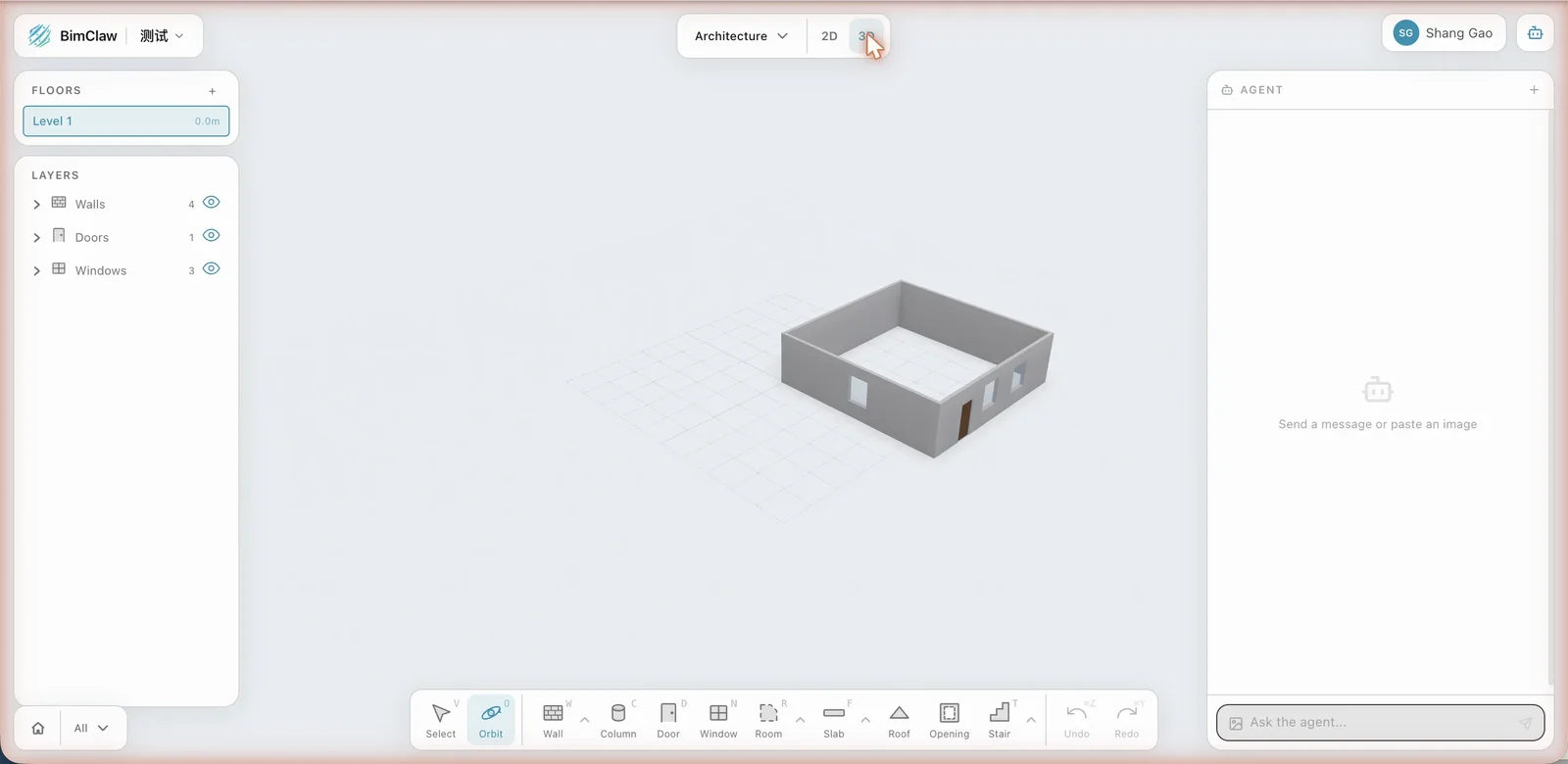
The workflow is: OpenClaw proposes a scheme, you review and adjust it in the browser, and once you’re happy you hand it over or keep developing it.
5. Working seamlessly with Revit
If your team uses Revit, BimDown provides a Revit add-in that supports two-way import and export:
- Export from Revit: convert an existing model to BimDown and hand it to OpenClaw to analyze or modify
- Import back into Revit: after OpenClaw is done, bring it back into Revit for further development; element IDs stay the same throughout, so no data is lost
- One-click sharing: click “Share” in Revit and it exports, uploads and generates a link, which clients or colleagues can open directly in a browser
You don’t need Revit at all, either. BimDown is a standalone format, and OpenClaw can model from scratch. The Revit add-in is only there to plug into existing workflows.
What’s still missing compared with Revit
BimDown targets the schematic design stage (LOD 200) and doesn’t aim for construction-document levels of information. Below are the Revit capabilities the format doesn’t yet cover, by category (a more detailed list is in the appendix of the previous post):
Geometry
| Feature | Notes |
|---|---|
| Freeform surfaces / NURBS | Only lines and arcs are supported; irregular buildings fall back to GLB meshes |
| Edited wall profiles | Gable walls and walls with irregular profiles can’t be expressed |
| Sloped floors | Floors currently have a horizontal outline only, with no slope information |
| Non-arc curved walls | Elliptical arcs and spline walls aren’t supported |
Assemblies and materials
| Feature | Notes |
|---|---|
| Layered assemblies | Core, insulation and finish layers of walls/floors; BimDown only stores a main material from an enum |
| Family parameters and formulas | Parameter-driven Revit families, constraints and nested families aren’t modeled |
| Type catalogs | Multiple type specifications within one family |
Project management
| Feature | Notes |
|---|---|
| Phases | Existing / demolished / new construction phase information |
| Design options | Comparing alternative schemes |
| Worksets | Splitting work among multiple people |
| Linked models | References across disciplines or buildings |
| Groups and arrays | Parametric copying of repeated units |
Views and documentation
| Feature | Notes |
|---|---|
| Views / sheets / annotation | Sections, elevations, details, dimensions, text notes |
| Schedules | Revit schedule reports |
| Rendering and material textures | Material textures needed for visual rendering |
Engineering calculations
| Feature | Notes |
|---|---|
| Structural loads and analysis | Load cases, analytical models |
| MEP calculations | Airflow, water flow, pressure drop, pipe sizing |
| Energy analysis | Thermal properties, energy simulation |
Other
| Feature | Notes |
|---|---|
| Site and topography | Site model, contours, property lines |
| Furniture and equipment families | Parametric furniture and sanitary fixtures (currently only representable as GLB meshes) |
| Curtain wall panel detail | Curtain walls have basic parameters, but individual panels aren’t modeled |
These gaps are deliberate. BimDown cares about “what is where”, not “how it’s built”. The schematic stage settles spatial relationships and system layout; construction-document development is left to Revit.
If the export hits an element BimDown can’t express parametrically (say, a custom family with an irregular shape), the Revit add-in automatically exports a GLB mesh as a geometry fallback: you can see it in 3D, but the AI can’t modify it parametrically.
Where the project stands
BimDown is open source, on GitHub, under the MIT license.
The supported element types cover the three main disciplines, architecture, structure and MEP: walls, columns, slabs, beams, doors, windows, stairs, ducts, pipes and so on, 30 types in all. Of the gaps listed above, some will be filled in over time (sloped floors and site, for example), and some are deliberately left out (family parameters, for example: that’s Revit’s core value, and there’s no need to reinvent it).
It isn’t meant to replace any software. It’s a bridge between AI and building design, so that your OpenClaw can not only write documents but also help you draw.
GitHub: NovaShang/BimDown
Questions or ideas are welcome as GitHub issues. Or just let your OpenClaw read the project’s code; it can understand it.